FAQ
Quick answers for GMs using Franchise Hockey Manager online leagues with FHMNOW.
How to export team files
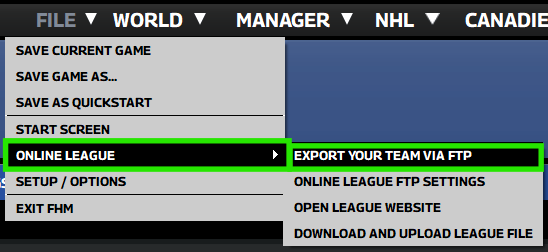
Use this when you need to submit your team changes to the league FTP server so the commissioner can import them before advancing the league.
- Open the game menu: File
- Choose Online League
- Select Export Your Team via FTP
How to download the latest league file
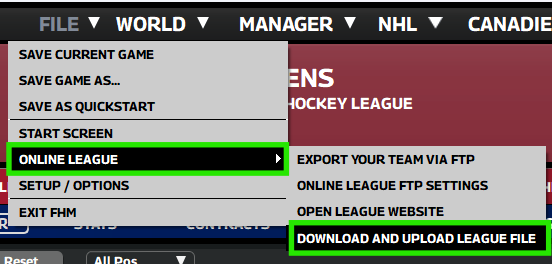
Use this to update your local league file to the most recent version the commissioner has published (same date / sim as the rest of the league).
- Open File
- Choose Online League
- Select Download and Upload League File and follow the prompts to fetch the current file
How to set up multiplayer (online league)
Set up your league in three phases: create the game and human GMs, point FHM at your FHMNOW FTP Server Connection, then prepare and share the initial league file.
Phase 1 — Create game
- When starting a game, select Multiplayer League.
- Create GM profiles for your human GMs at Manager → Add/Edit Human Managers.
- Your commissioner profile should stay unemployed.
- Use Add Additional Manager to add profiles. GM profile passwords are set here.
- Assign profiles to teams with the Select Team option.
- Enable Cannot be fired so your GMs stay employed.
Phase 2 — FTP settings
Configure your league’s FTP server settings at File → Online League → Online League FTP Settings. Configure the following details:
League file upload options
- Host & Port: values from FHMNOW League Admin
- Username & Password: values from FHMNOW League Admin
- FTP Mode: value from FHMNOW League Admin
- Target Path on Server: League File Path from FHMNOW League Admin
- League File Name: the name of your multiplayer league
Check: Test league file upload should succeed and the folder should exist.
League file download options
- Host & Port: values from FHMNOW League Admin
- Username & Password: values from FHMNOW League Admin
- FTP Mode: value from FHMNOW League Admin
- Source Path on Server: League File Path from FHMNOW League Admin
- League File Name: the name of your multiplayer league
- League File URL: optional — leave blank
Note: Test league file download may fail at this stage. That is normal.
Team file transfer options
- Host & Port: values from FHMNOW League Admin
- Username & Password: values from FHMNOW League Admin
- FTP Mode: value from FHMNOW League Admin
- Path on Server: Team File Path from FHMNOW League Admin
Check: Test team file transfer should succeed and the folder should exist.
E-mail options
This section is optional; you do not need to change it.
Phase 3 — Compress and distribute the league file
To find your league file: Start Screen → Settings → Open customizable data folder. In File Explorer, open the saved_games folder. Your league is the folder named like YourLeagueName.lg.
Close the game completely before compressing. Do not continue with the game running.
League file compression (step by step)
- Make a copy of your league folder and keep it somewhere safe (for example Desktop).
- Work only on that copy — not the original inside
saved_games. - Open the copy of the league folder and delete:
- the entire
rs_onefolder - the entire
rs_twofolder - the entire
import_exportfolder - inside
settings, deleteaccountsdata_commish.dat(required)
- the entire
- Right-click the folder copy (
YourLeagueName.lg) → Compress to… → ZIP file. - Save the ZIP. It will be named like
YourLeagueName.lg.zip. - Send that ZIP to your GMs (for example Google Drive or Dropbox).
How to update your league website
Use these steps any time you want to push fresh CSV data from Franchise Hockey Manager to your FHMNOW league site.
- Export CSV files in Franchise Hockey Manager at WORLD → EXPORT CSV.
- Access your league’s League Admin page on FHMNOW.
- Under CSV upload, select Choose Files and select the
csvfolder located at\saved_games\<league-name>\import_export\csv. - Once the
csvfolder is selected, click Upload CSVs to send your CSV files to FHMNOW. - After FHMNOW receives the updated CSV files, click Update League Site to update your league website.
Tip: Unsure how to find the /saved_games/ FHM folder? Go to the FHM start screen, click Settings, then Troubleshooting, and select Open customizable data folder to open the FHM folder path in File Explorer.
Discord integration (FHMNOW bot)
FHMNOW can post league snapshots to your Discord server after you connect the bot once and map each report type to a text channel. Publishing runs from your league’s League Admin page (commissioner account).
Disclaimer
The league bot must have Read Channel and Send Message permissions on every channel in your Discord server where you want FHMNOW to publish (including any channel you list in League Admin). If a post fails, check that role or channel overrides allow the bot to see the channel and send messages there.
1. Open League Admin
Sign in on FHMNOW, go to your league site, and open Admin (or the League Admin URL your commissioner uses).
2. Connect your Discord server
In the Discord integration section, choose Connect Discord server. Complete the OAuth prompt and select the server where your league lives. When it succeeds, you’ll see the connected server name on the admin page.
If the button is missing or OAuth fails, the host may not have Discord credentials configured yet — check with your league’s FHMNOW operator.
3. Create channels and map names
In Discord, create text channels for the reports you want (for example #standings, #injuries, etc.). Back in League Admin, enter each channel name without the #, enable the matching toggle, and the page will save your Discord settings as you edit. Please ensure the FHMNOW bot has View Channel and Send Messages permissions on all configured channels.
4. Publish
Use the per-report Publish buttons to send one snapshot at a time, or use the batch actions (for example send all league reports or all statistical leaderboards) when you want everything pushed after a sim. Team reports use the date range fields above that form so the bot knows which sim window to summarize.
Overview of what each publisher does: Features → Discord integration.
Collections card hit rates
Every Collections pack is 8 cards. The first five are Base or Foil (with a small chance of a Legend), and the last three are where the hits live — each of those three has its own, increasing chance of coming back rare or better. These are the published odds for a standard pack.
| Card type | Chance per pack | Roughly | Per card |
|---|---|---|---|
| Nations Auto 1/1 | 2.9% | 1 in 35 packs | 0.36% |
| Autograph 1/1 | 3.4% | 1 in 30 packs | 0.43% |
| Metal 1/1 | 3.4% | 1 in 30 packs | 0.43% |
| Trophy 1/1 | 3.4% | 1 in 30 packs | 0.43% |
| Legend Auto 1/1 | 3.5% | 1 in 29 packs | 0.44% |
| Patch /3 | 4.5% | 1 in 22 packs | 0.57% |
| Outburst Gold | 5.4% | 1 in 19 packs | 0.68% |
| Black Ice | 8.9% | 1 in 11 packs | 1.1% |
| Outburst | 8.9% | 1 in 11 packs | 1.1% |
| Chrome | 15.3% | 1 in 7 packs | 2.0% |
| Legend | 21.5% | 1 in 5 packs | 2.9% |
| Gold | 29.5% | 1 in 3 packs | 4.0% |
| Foil | 81.4% | 4 in 5 packs | 18.8% |
| Base | ~100% | every pack | 66.7% |
Chance per pack is the odds of at least one turning up somewhere in the eight cards. Per card is how often any single card comes back that type. Rates are independent per pack — a long dry run does not make the next pack any likelier.
Auction House
The three daily lots are drawn from the same tables but every lot can hit, so the rates run well ahead of a pack: roughly 1 in 7 cycles carries a Black Ice or an Outburst, 1 in 15 a Patch, 1 in 19 a 1/1 Autograph, Metal or Trophy, and 1 in 23 a Nations Auto.
Things that shift the odds
- Legends get more common from 2031. In leagues playing 2031 or later the Legend rate roughly doubles to about 1 in 3 packs, which slightly dilutes everything else in the rare tier (Black Ice and Outburst settle near 1 in 13, Nations Auto near 1 in 40).
- A league needs history for Legends. Legend and Legend Auto are drawn from retired players, so a brand-new league with no career history behind it will not produce them yet.
- Guest accounts cannot pull numbered prints. Autograph, Legend Auto, Metal, Trophy and Patch are manager-only; a guest rolling one gets a standard card instead.
- 1/1 means 1/1. Once a player's Autograph, Metal or Trophy has been minted for a season, nobody else can pull it that season. Patches are limited to three prints per player per season.
Nations Auto
The rarest card in the game, and the only one built around a country rather than a club. Each season every participating nation puts its best players on a shortlist — top 12 forwards, 6 defencemen and 2 goalies by OVR for Canada, the United States, Russia, Finland and Sweden; smaller shortlists for Switzerland, Czechia, Slovakia and Slovenia — and only those players can appear. Every one is a signed 1/1. Russia, Czechia, Slovakia and Slovenia join from the 1992 season onward.
Cards you cannot pull
Inferno is not in any pack. It is a Hard-mode Challenge reward, drawn from the cards you handed in. The Team Completion autograph is likewise earned, by clearing every Challenge mode for one club in a season. The Lab is the other way to get a specific card type without pulling it — burn cards you do not want for a guaranteed draw at one you do, at fixed rates that ignore the table above.
Rates are approximate and rounded, and we will keep this table updated as new card templates are added.